/operator

Overview

The /operator command starts an interactive operator session where you work alongside the AI agent in real time. Unlike /pentest which runs autonomously, operator mode gives you step-by-step control over the testing process — you can approve actions, steer the agent’s focus, and intervene at any point.

Usage

$/operator

With flags:

$/operator --target https://example.com --mode auto

Alias: /o

How It Works

1

Configure Target

Provide the target URL and optional authentication details.

2

Choose Mode

Select how much autonomy the agent has: plan, manual, or auto.

3

Interactive Session

The AI agent proposes actions and you approve, reject, or redirect in real time.

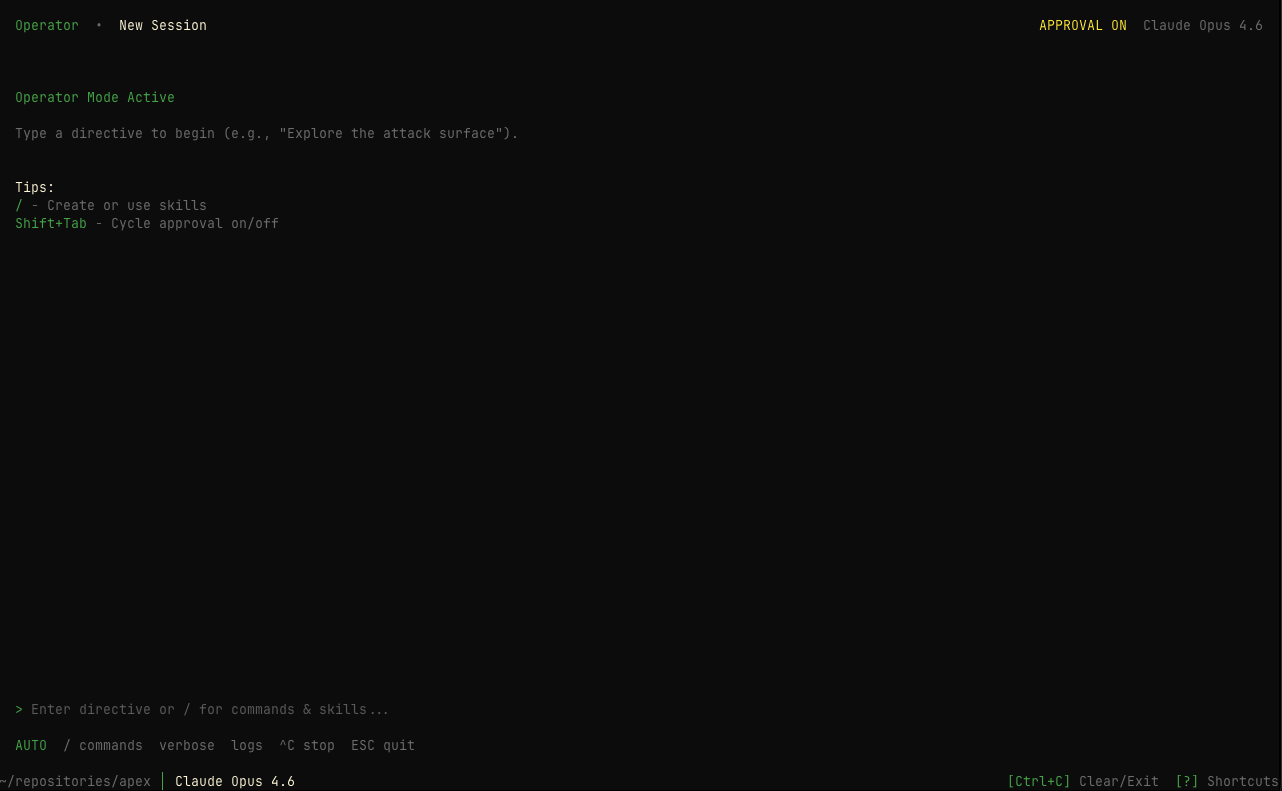
Operator session — interactive prompt

Operator Modes

ModeDescription
PlanThe agent creates a testing plan for your review before executing anything
ManualThe agent proposes each action individually and waits for your approval
AutoThe agent executes actions automatically, but you can intervene at any time

Manual mode is the default and recommended for learning or when testing sensitive targets. Auto mode is closer to /pentest but keeps you in the loop with the ability to pause and redirect.

Command Flags

FlagDescription
--target <url>Target URL to test
--name <name>Session name
--mode <mode>Operator mode: plan, manual, or auto
--autopilotDisable approval gates (auto-approve all actions)
--model <model>AI model to use
--auth-url <url>Login page URL
--auth-user <user>Auth username
--auth-pass <pass>Auth password
--auth-instructionsCustom auth instructions
--hosts <h1,h2,...>Allowed hosts (comma-separated)
--ports <p1,p2,...>Allowed ports (comma-separated)
--strictEnable strict scope mode
--headers <mode>Headers mode: none, default, or custom
--header <Name:Val>Custom header (repeatable)

When to Use /operator vs /pentest

/pentest

Autonomous mode — set a target and let the AI agent swarm run independently. Best for comprehensive, hands-off testing.

/operator

Interactive mode — guide the AI agent step by step. Best for targeted investigations, learning, or sensitive environments.

ScenarioRecommended
Full security audit/pentest
Investigating a specific feature/operator
First time testing a target/operator
CI/CD automated scanning/pentest
Sensitive production environment/operator
Broad vulnerability discovery/pentest

Example Workflow

$# Start Apex
$pensar
$
$# Launch operator session
$/operator
$
$# Or with flags for quick start
$/operator --target https://api.example.com --mode manual
$
$# In the session:
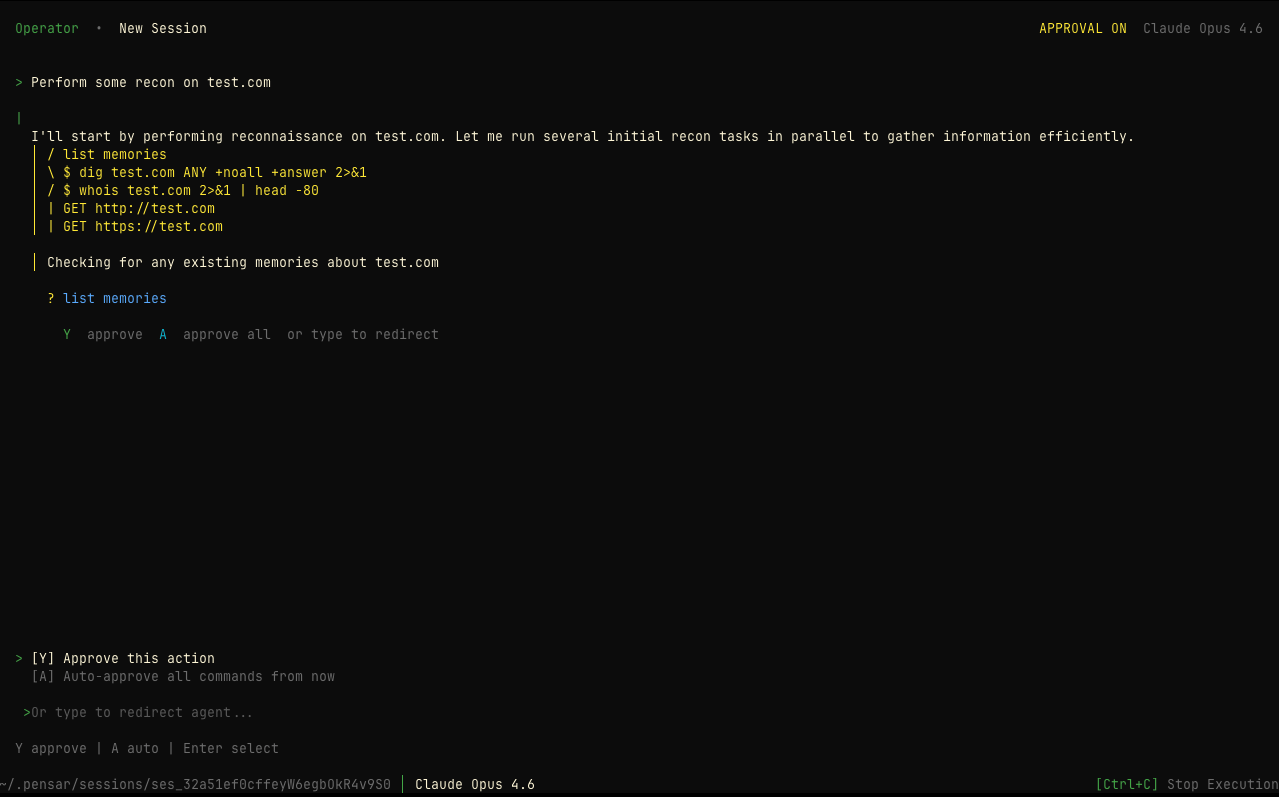
$# - The agent proposes reconnaissance actions
$# - You approve or redirect
$# - Review findings as they come in
$# - Steer toward specific areas of interest
Operator session — agent action approval

Operator Skills

You can extend operator mode with custom skills using /create-skill. Skills are reusable instruction sets that teach the agent specialized testing techniques or workflows for your specific environment.

Best Practices

Tips for Operator Mode: 1. Start with plan mode to review the agent’s testing strategy before execution 2. Use manual mode for sensitive targets where you want full control 3. Switch to auto mode once you’re comfortable with the agent’s approach 4. Create skills for repetitive testing patterns in your environment

Security Reminder: Only test systems you own or have explicit authorization to test. Unauthorized testing is illegal.

After Starting

Once you start an operator session:

  • The AI agent begins analysis based on your chosen mode
  • You interact in real time, approving or steering actions
  • Findings are reported as they’re discovered
  • The session is automatically saved and can be resumed via /sessions